Sell tickets online for your event
Set your ticket types and prices, let people buy them straight from your event page, and check every ticket at the door. Payment runs through your organization's own Stripe account.
Ticketing is in early access — it is live and selling, and we are rolling it out with early organizations one at a time so we can help each one set it up.
Made for the nights people buy a ticket for
Ticketing suits the occasions where a seat, a plate, or admission is the thing being sold — and it sits alongside free registration on the same event page when only part of your day is paid.
- Concerts
- Theatre
- Dance performances
- Cultural programs
- Screenings
- Fundraising dinners & galas
- Festival days with paid admission
How ticketing works on EventsLog
Everything below is the ticketing part of an event you are already running here — not a separate tool to keep in step.
Put your tickets on sale
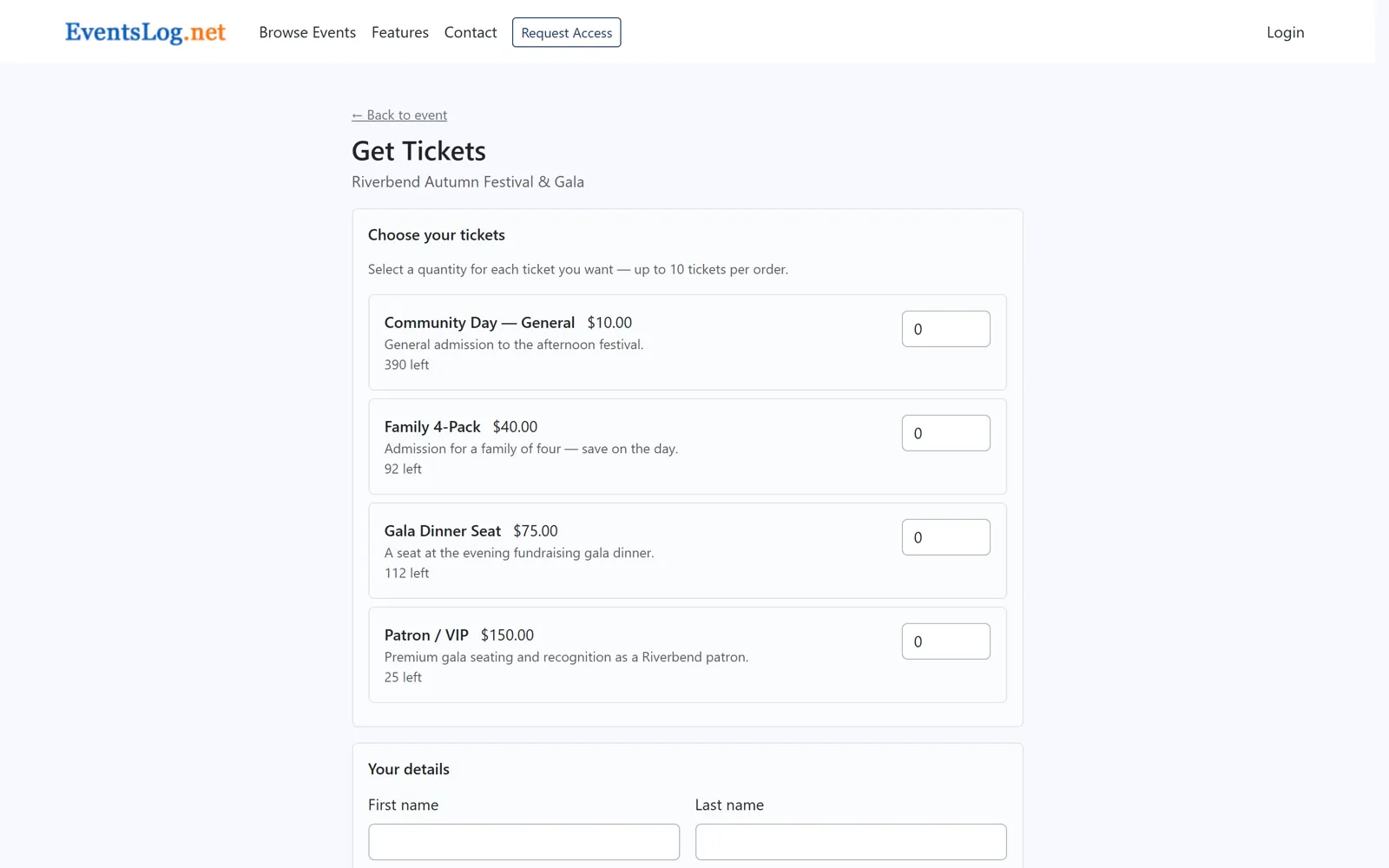
Name each ticket you sell, give it a price, and say how many exist — general admission, a family pack, a dinner seat, a patron ticket. Set a sales window if tickets should only be available between certain dates, or leave it open.
Buyers choose their quantities right on your event page, and the number left updates as tickets go. A free ticket type works the same way, side by side with the paid ones, so a day that is partly free and partly paid is still one page and one list.
Every ticket arrives with a QR code
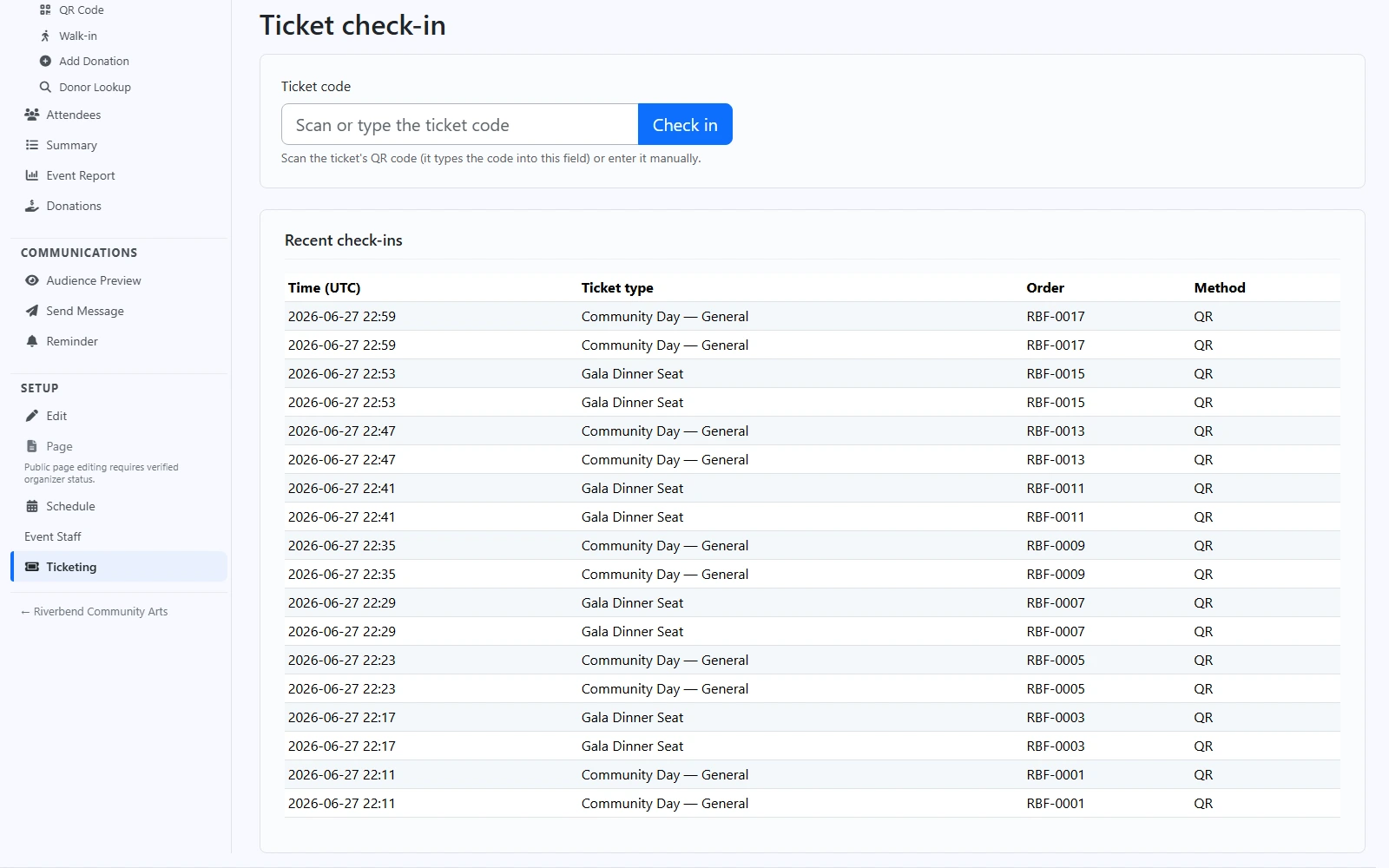
As soon as the order is confirmed, the buyer sees their tickets on screen and gets them by email as well — one QR code per ticket, with the plain ticket code printed underneath in case a phone will not cooperate.
At the door, your staff scan that QR code or type the code in, and EventsLog answers straight away: this ticket is good, or it is not. Every scan is recorded, so you can see what has come through the door tonight.
Registrations arrive at the same door with their own codes — more about check-in and event day
Know what sold, and what is left
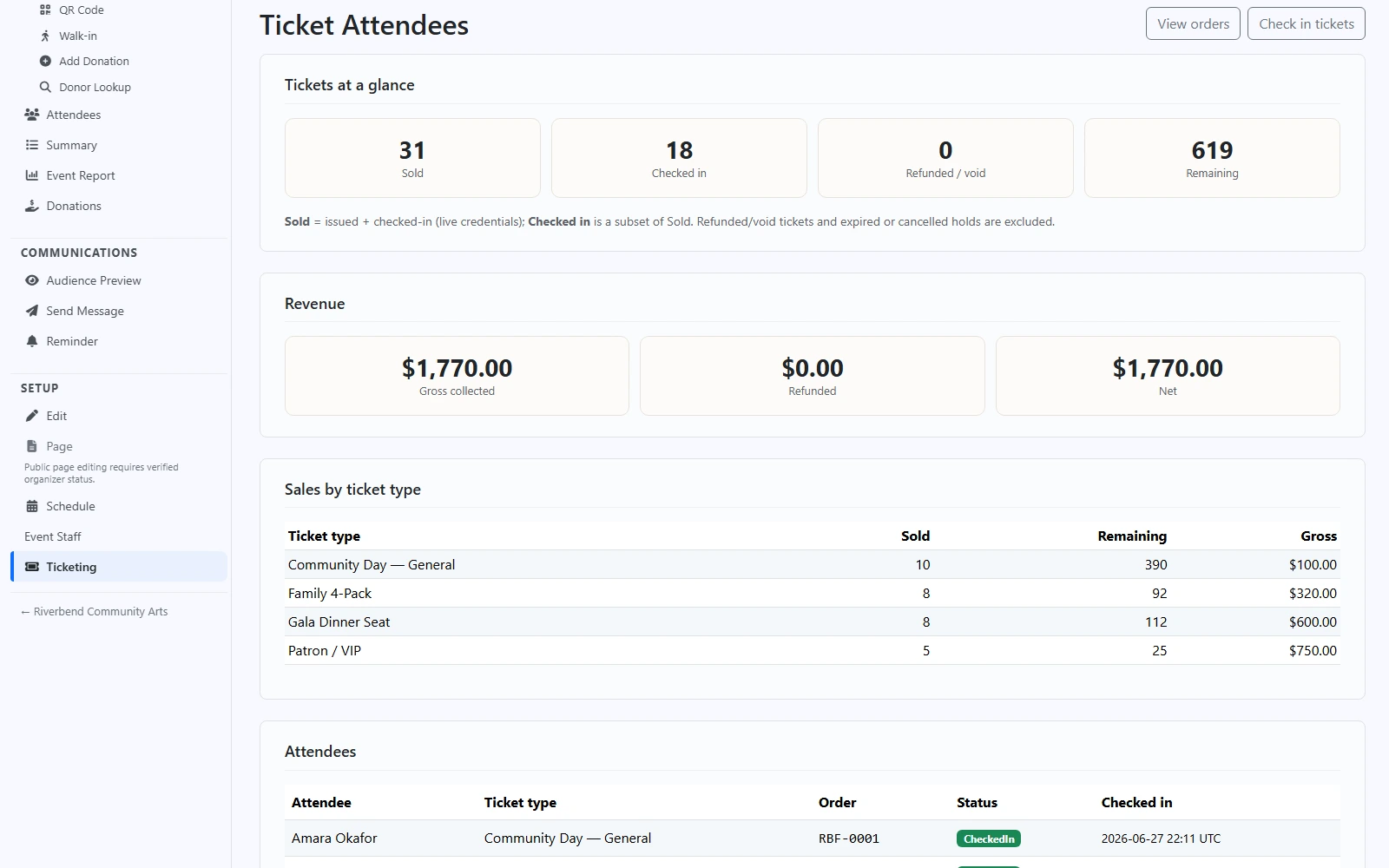
One screen shows how many tickets have sold, how many have been checked in, how many were refunded or voided, and how many are still available — with a breakdown by ticket type so you can see which one is carrying the night.
The money figures — collected, refunded, and net — sit alongside them, and are shown only to your managers and administrators. Everyone working the door sees the counts they need and nothing else.
Ticket money goes straight to you
Checkout runs on your organization's own Stripe account, so what people pay for tickets lands with you — EventsLog never holds your money.
- Your own connected Stripe account
- Card details never touch EventsLog
- Refund a whole order or part of one
A refunded ticket stops working at the door and drops out of your sold count, so the door and your totals never disagree.
Ticketing is one step of the whole event
Selling the ticket is one part of putting an event on. The public page, the registrations, the messages before the day, the door, and the numbers afterwards are the rest of it.
Tickets, registrations, and donations — it's one platform: same account, same people, same payments, whatever you run.
Ready to sell tickets on EventsLog?
We review requests and help your organization get set up. Free during early access.